iOS Guide
Add to your
Home Screen.
Get instant access to DevWave on iPhone and iPad. Four quick steps and it lives right on your home screen — no App Store required.
Open Safari
Navigate to the DevWave website using Safari on your iPhone or iPad. This feature is exclusive to Safari — it won't work in Chrome, Firefox, or other browsers.
Make sure you're using Safari as your browser before continuing.

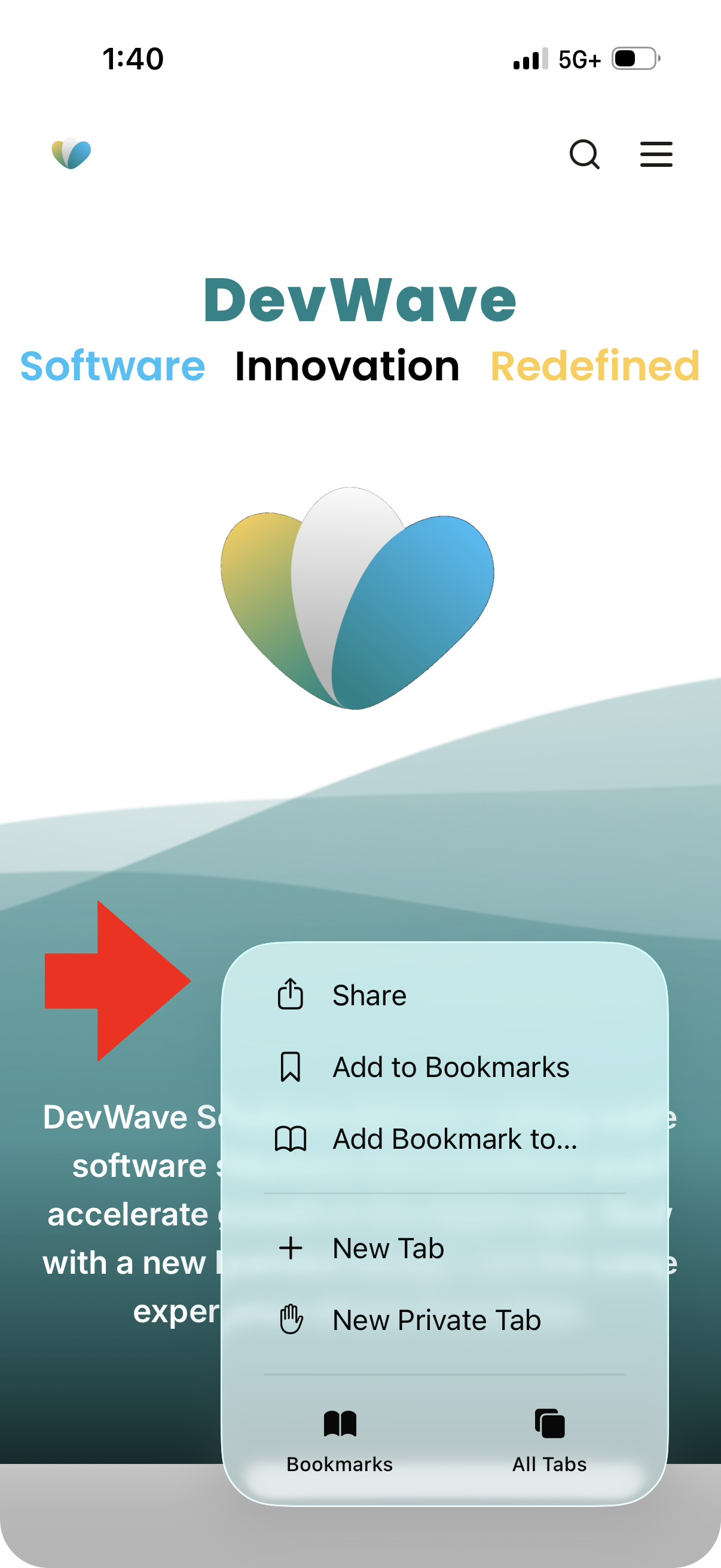
Tap the Share button
Look for the Share icon at the bottom center of your screen — it looks like a box with an arrow pointing upward. Tap it to open the share sheet.
On iPad, the Share button is in the top right corner of the toolbar.
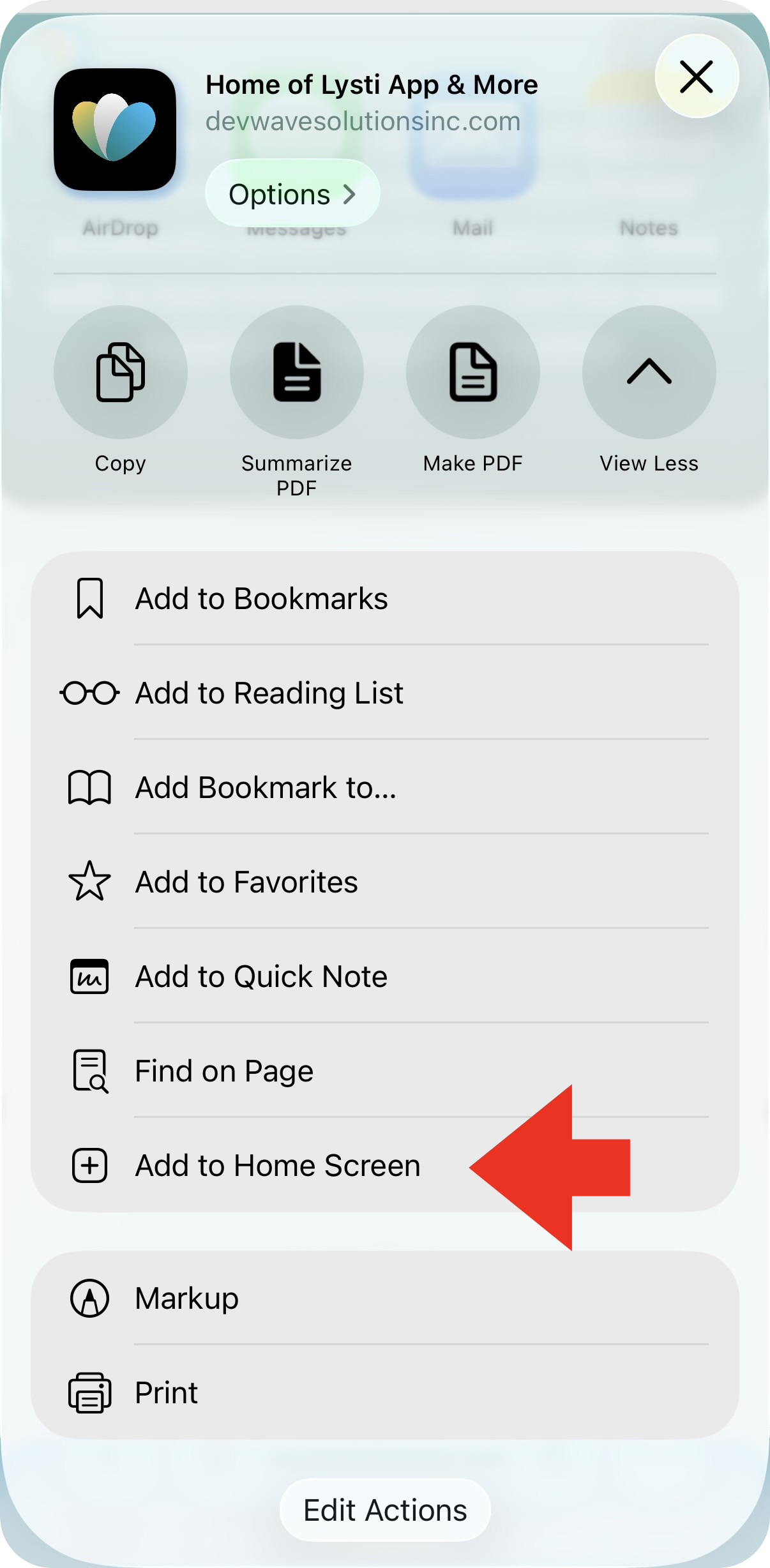
Select "Add to Home Screen"
Scroll through the list of actions in the share sheet and tap "Add to Home Screen". You may need to scroll down to find it.
If you don't see it, scroll down past the app row and through the actions list.
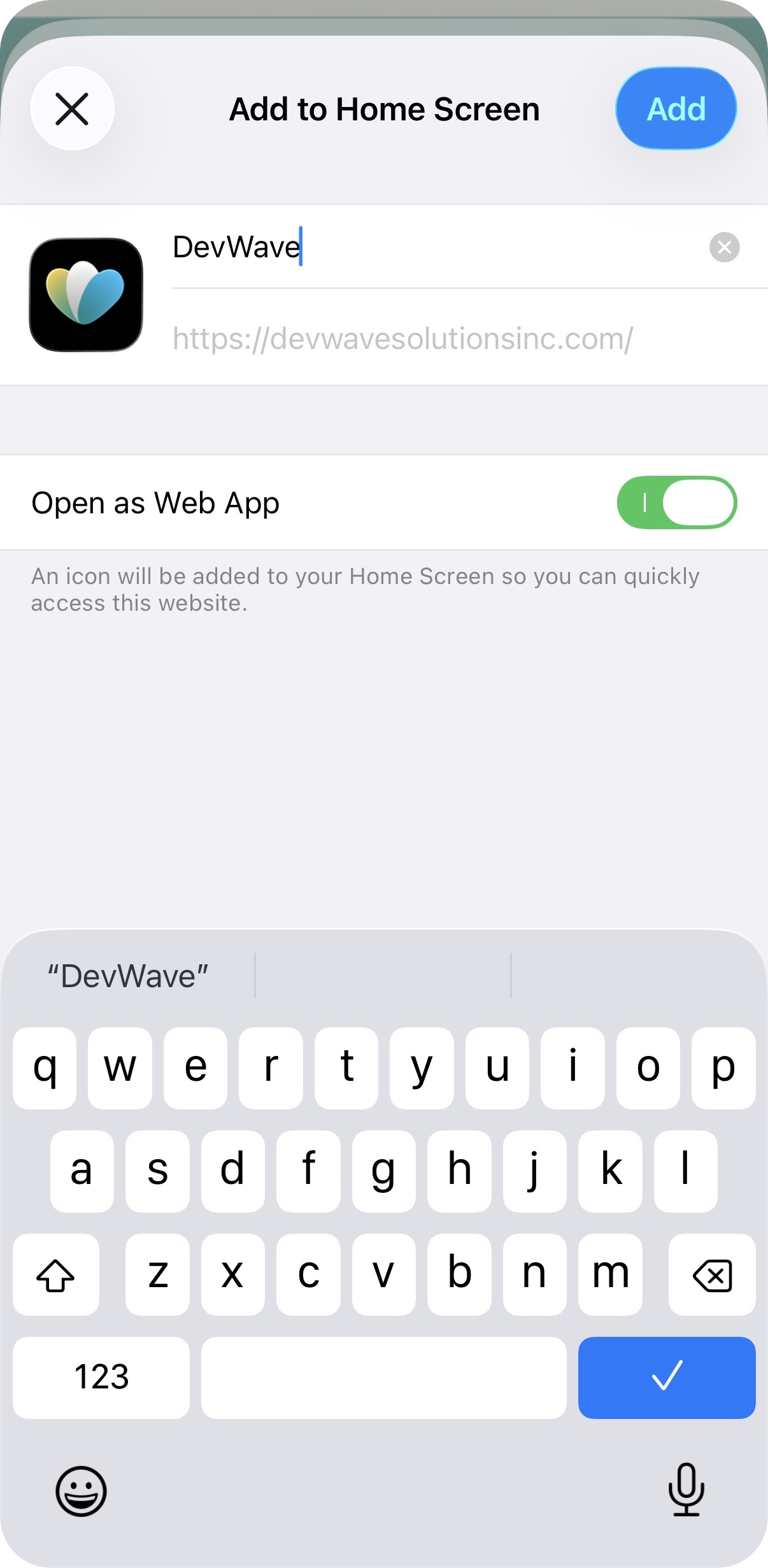
Name it and tap Add
A dialog will appear with a name pre-filled. You can leave it as is or rename it to anything you like. Tap "Add" in the top right to confirm.
The icon will appear on your home screen just like a native app.
That's it. Once added, DevWave opens without browser chrome — full screen, just like a native app.